



Help & Support
How to Start a Charging Session
See how to start your charge, so your trip stays easy and stress-free.
Whichever way you start, the order is the same: pay or authorise first, then plug the connector into your car. If you plug in too early, the charger may get stuck waiting.
Start with the app
Find the charger
Open the map in the E.ON Drive Public app, or enter the charger ID.
Select a connector
The connector code is shown just above the connector and in the app.
Check price and payment method
The price and your payment method are shown before you start.
Start and connect
Start charging in the app. Connect your car when the app asks you to, and follow the session in the app.
Find the charger
Open the map in the E.ON Drive Public app, or enter the charger ID.
Select a connector
The connector code is shown just above the connector and in the app.
Check price and payment method
The price and your payment method are shown before you start.
Start and connect
Start charging in the app. Connect your car when the app asks you to, and follow the session in the app.
Pay by card at the charger
Applies to fast chargers with a payment terminal.
Press Start
Press the button below Start on the screen.
Select payment method
Use the two middle buttons to choose, then press Continue with the button on the far right.
Hold your card to the terminal
Hold your card against the card terminal next to the screen. Enter your PIN if the terminal asks for it.
Select a connector
Select the connector that flashes green.
Plug into your car
Charging starts.
Press Start
Press the button below Start on the screen.
Select payment method
Use the two middle buttons to choose, then press Continue with the button on the far right.
Hold your card to the terminal
Hold your card against the card terminal next to the screen. Enter your PIN if the terminal asks for it.
Select a connector
Select the connector that flashes green.
Plug into your car
Charging starts.
Start with a charging tag
Where you hold the tag depends on the charger.
Hold the tag to the reader
Hold your charging tag against the reader. See below for where to hold it.
Wait for approval
Wait until the tag has been approved.
Plug into your car
Plug into the connector you have chosen. Charging starts.
Hold the tag to the reader
Hold your charging tag against the reader. See below for where to hold it.
Wait for approval
Wait until the tag has been approved.
Plug into your car
Plug into the connector you have chosen. Charging starts.
On a fast charger, you need to select the connector you want to charge from.
On an AC charger, hold the tag over the connector you want to charge from.
On some AC chargers (for example Compleo), hold the tag at a central reader on the charger, and then plug into the connector you want to use.
Start via payment link
For when you pay at betal.edri.dk.
Open the payment page
Open betal.edri.dk in your browser.
Pay
Follow the instructions on the page and pay with your card.
Plug in your car
Plug the connector into your car once the payment is approved.
Do not close the tab
Ideally, leave the tab open in your browser, so you can stop charging again from the same page. If you have closed it, you can open the page again, or call our hotline on +45 3143 8888.
Open the payment page
Open betal.edri.dk in your browser.
Pay
Follow the instructions on the page and pay with your card.
Plug in your car
Plug the connector into your car once the payment is approved.
Do not close the tab
Ideally, leave the tab open in your browser, so you can stop charging again from the same page. If you have closed it, you can open the page again, or call our hotline on +45 3143 8888.
Need help getting started?
These short videos guide you through each charging method — via app, contactless payment, or RFID card.
Reservation on your card
When you pay directly at the charger or via betal.edri.dk, an amount is reserved on your card when you start. When charging stops, the reservation is replaced by the actual price. If charging never starts, the reservation is released after 1 to 3 days. This does not apply when you start with the app.
Autocharge
If you have activated Autocharge in the app, the charger recognises your car when you plug in, and charging starts by itself. The feature requires a supported car and a compatible charger.
If charging does not start
Try this
Unplug the connector
Unplug the connector from both the car and the charger.
Wait for green
Wait until the charger shows a green light.
Plug in again
Plug into the charger first and then into the car, and start again.
Still not working?
Call our hotline on +45 3143 8888. We are open around the clock.
Unplug the connector
Unplug the connector from both the car and the charger.
Wait for green
Wait until the charger shows a green light.
Plug in again
Plug into the charger first and then into the car, and start again.
Still not working?
Call our hotline on +45 3143 8888. We are open around the clock.
What do the lights on the charger mean?
Green: The charger is available and ready to use.
Blue: The charger is in use and the car is charging.
Red: The charger is out of service or temporarily unavailable.
White: Charging has finished, or the charger is in system status, for example during a restart or software update.
Frequently Asked Questions
Do I need to be an E.ON Drive electricity customer to use your stations?
No, everyone is welcome at our stations. We also accept charging cards from many other charging service providers.
How do I know which connector am I using?
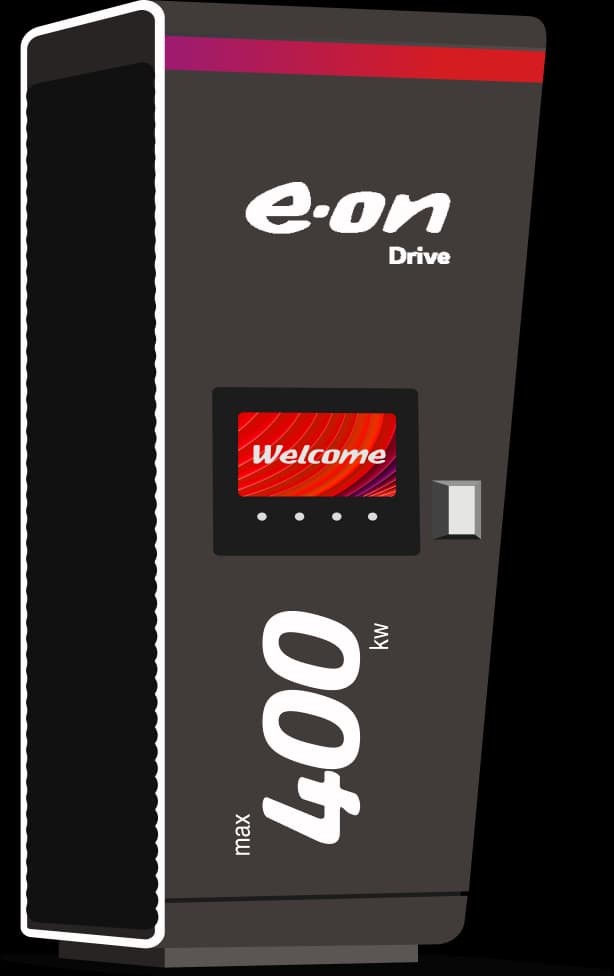
Just above the socket we show a unique code. This will be shown on the app you’re using and the charger’s display.
What should I do if the app says the charger is already in use?
Sometimes the app won't let you start if you've already plugged your cable in. Its always best to follow the instructions on the app and plug in when prompted to do so. Try unplugging and start your charging session via the app before plugging in again.
Why does the charger display 'Not authorised' when I scan my RFID card?
This message usually means that your RFID card is either not supported at this charging station or there’s an issue with the card itself. Please contact your RFID card provider for further assistance.
Please click here for a list of our roaming partners.
Why can’t I see E.ON Drive charging stations in the E.ON Drive app?
The E.ON Drive app is designed for home customers and does not display public charging stations. To find and use E.ON Drive public chargers, please download the E.ON Drive Public app.
Do I need an app or account to use E.ON Drive charging stations?
No app or registration is required to use our public charging stations. With the E.ON Drive Public app your receipts are saved automatically, and you get access to features such as Autocharge, where your car is recognised and payment is handled for you.

Got more questions?
Prefer to talk? Call our hotline 24/7:+45 3143 8888